> ## Documentation Index
> Fetch the complete documentation index at: https://docs.veroreceipts.com/llms.txt
> Use this file to discover all available pages before exploring further.
# QuickBooks Online Integration
> Connect Vero to QuickBooks Online
## Overview
Connect QuickBooks Online to Vero and your itemized sales receipts sync as they are recorded. That data powers [Pricing Intelligence](/products/pricing-intelligence) and [Customer Insights](/products/customer-insights). Setup takes less than a minute.
**Digital receipts come included.** Once QuickBooks Online is connected, Vero also sends an encrypted, itemized copy of each receipt to your customers' banking apps. Customers recognize the charge, which means fewer chargebacks and friendly fraud disputes. [Learn more](/digital-receipts/overview).
## Quick Start
Log in to your Vero merchant dashboard and go to **Integrations**.
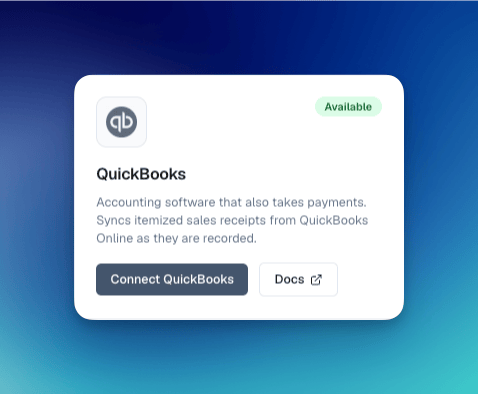
Find the **QuickBooks** card and click **Connect QuickBooks**. This starts the Intuit sign-in flow.
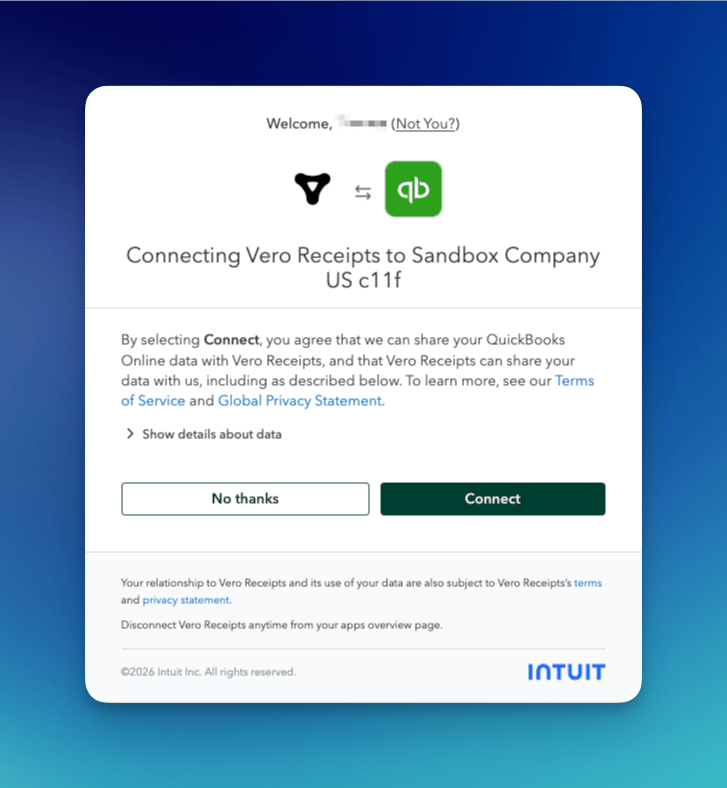
 Sign in to your Intuit account if prompted, confirm the QuickBooks Online company you want to connect, and click **Connect**. Repeat for each company you want to connect.
 That's it. Intuit returns you to your Vero dashboard, and your sales start syncing to Vero.
## Privacy & Security
**Your transaction data is never exposed.** All receipt data is encrypted using RSA-2048 encryption before it is delivered. Only your customers hold the private keys to decrypt their own receipts.
* Vero cannot read your transaction data
* Banks cannot read your transaction data
* Only the customer who made the purchase can decrypt their receipt
## FAQ
No. Connecting your POS is free on the Starter plan, with no hardware and no contract. Starter includes Pricing Intelligence and digital receipts. AI Builder and Customer Insights come with the Custom plan. See [pricing](https://merchants.veroreceipts.com/pricing).
No. Vero receipts are in **addition** to the receipts you already send from QuickBooks. Vero sends an encrypted copy to the customer's bank.
Yes. Disconnect from the **Integrations** page of your Vero merchant dashboard. You can also disconnect Vero Receipts from the apps overview page in QuickBooks Online.
## Support
Questions? Contact [hi@veroreceipts.com](mailto:hi@veroreceipts.com)
This documentation is built and hosted on [Mintlify](https://mintlify.com), a developer documentation platform.
That's it. Intuit returns you to your Vero dashboard, and your sales start syncing to Vero.
## Privacy & Security
**Your transaction data is never exposed.** All receipt data is encrypted using RSA-2048 encryption before it is delivered. Only your customers hold the private keys to decrypt their own receipts.
* Vero cannot read your transaction data
* Banks cannot read your transaction data
* Only the customer who made the purchase can decrypt their receipt
## FAQ
No. Connecting your POS is free on the Starter plan, with no hardware and no contract. Starter includes Pricing Intelligence and digital receipts. AI Builder and Customer Insights come with the Custom plan. See [pricing](https://merchants.veroreceipts.com/pricing).
No. Vero receipts are in **addition** to the receipts you already send from QuickBooks. Vero sends an encrypted copy to the customer's bank.
Yes. Disconnect from the **Integrations** page of your Vero merchant dashboard. You can also disconnect Vero Receipts from the apps overview page in QuickBooks Online.
## Support
Questions? Contact [hi@veroreceipts.com](mailto:hi@veroreceipts.com)
This documentation is built and hosted on [Mintlify](https://mintlify.com), a developer documentation platform.